


 Follow
 Rekomendasi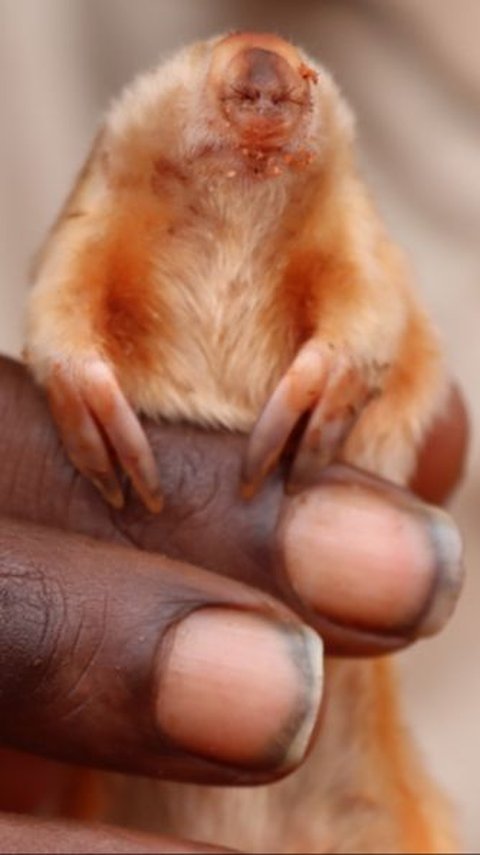
An extremely rare blind vole has been spotted and photographed in the Australian outback.
Read More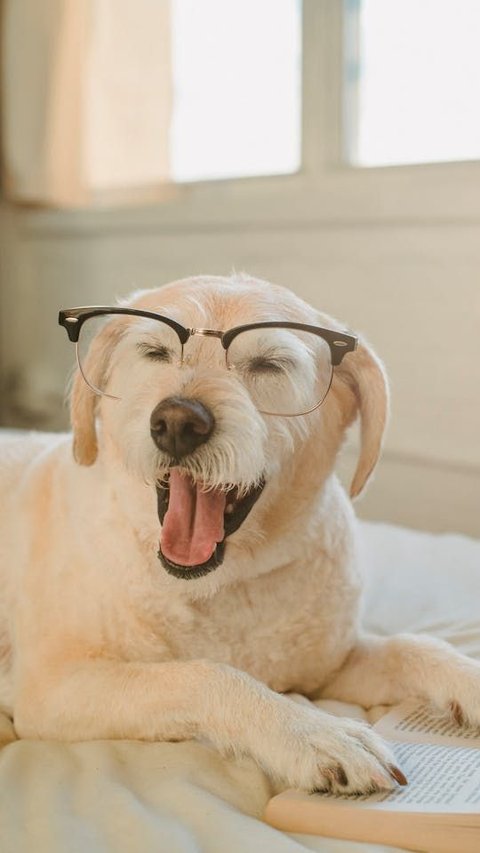
Are you a dog lover or just looking for some good laughs? Here are some paw-some dog jokes that will brighten your day.
Read More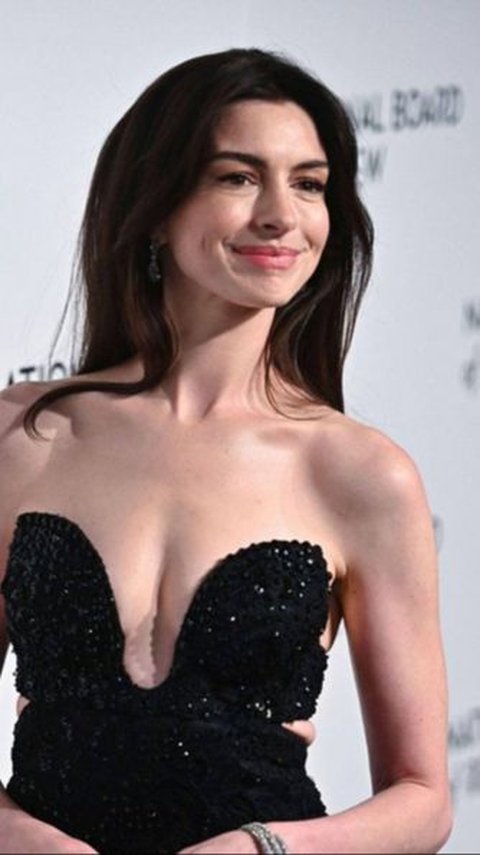
Anne Hathaway opens up about the "disgusting" chemistry test she went through before starring in romantic movies in the 2000s.
Read More
Whether you believe in ghosts or not, these haunted places in Cardiff, Wales, have an eerie atmosphere and feel of the past.
Read More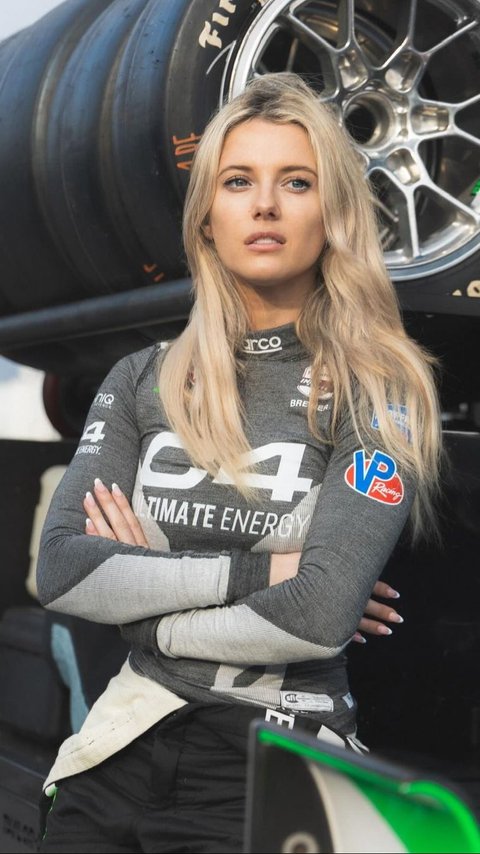
Here are some of the hottest and most talented female racing drivers that charmed fans both on and off the circuit.
Read More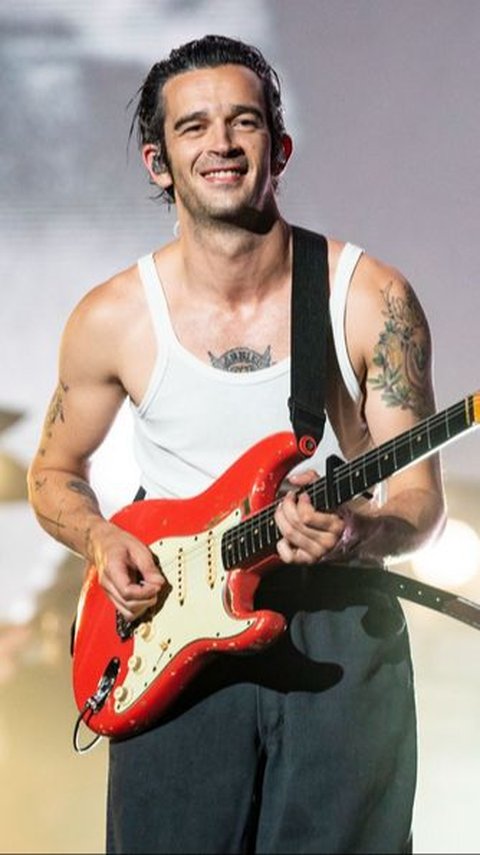
Matty Healy responded to his ex-Taylor Swift's new album, The Tortured Poets Department.
Read More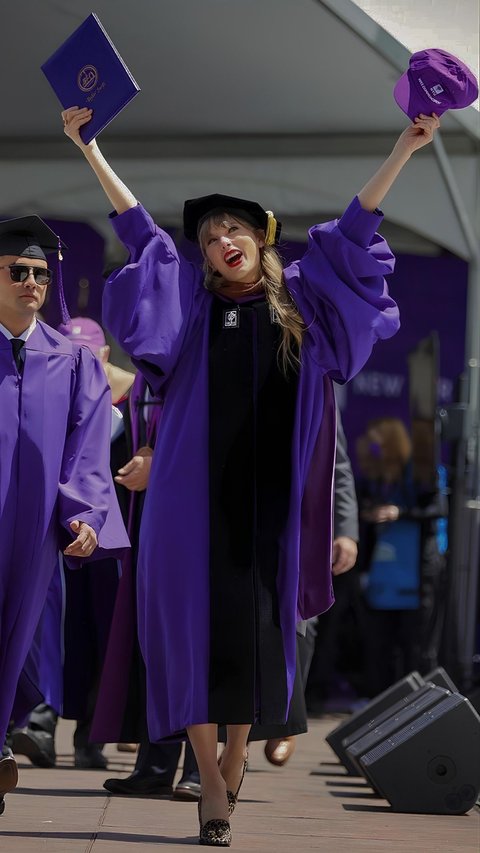
Taylor Swift lyrics quotes can remind you to embrace change, be fearless, and never let anyone dull your sparkle.
Read More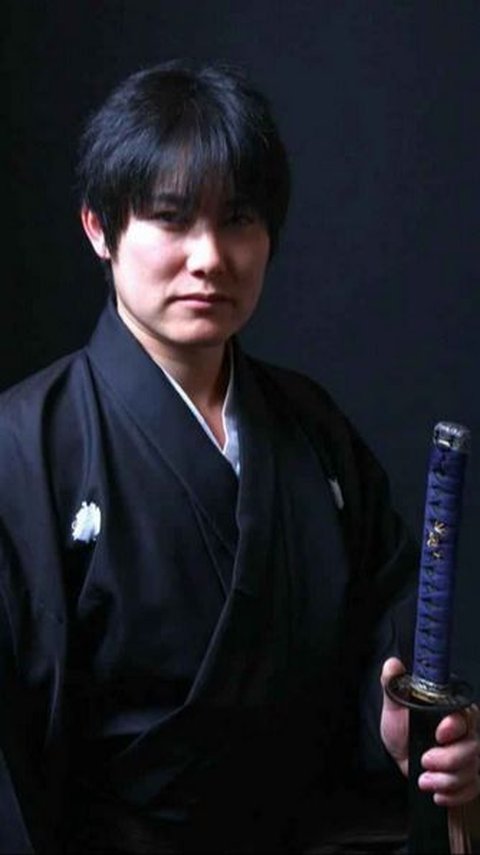
He is the Guinness World Record holder for the most sword slashes in one minute.
Read More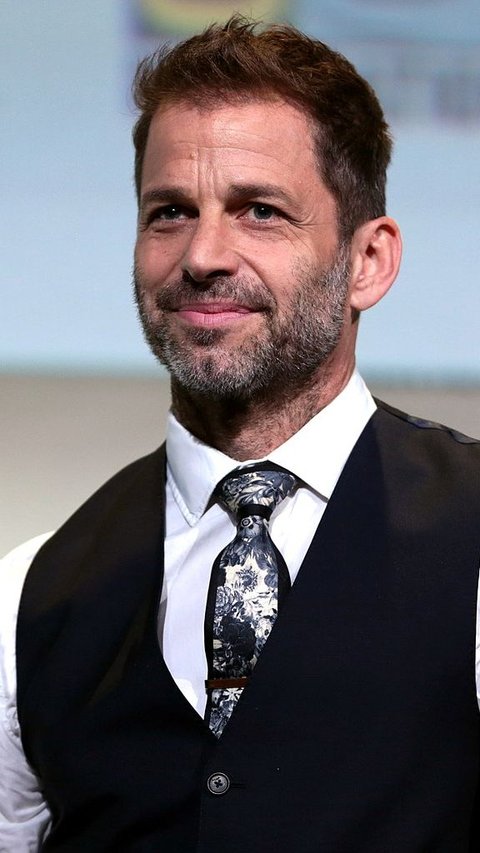
Zack Snyder is an American film director known for his works on comic book movies and superhero films. Here are the top 6 Zack Snyder movies you should watch.
Read More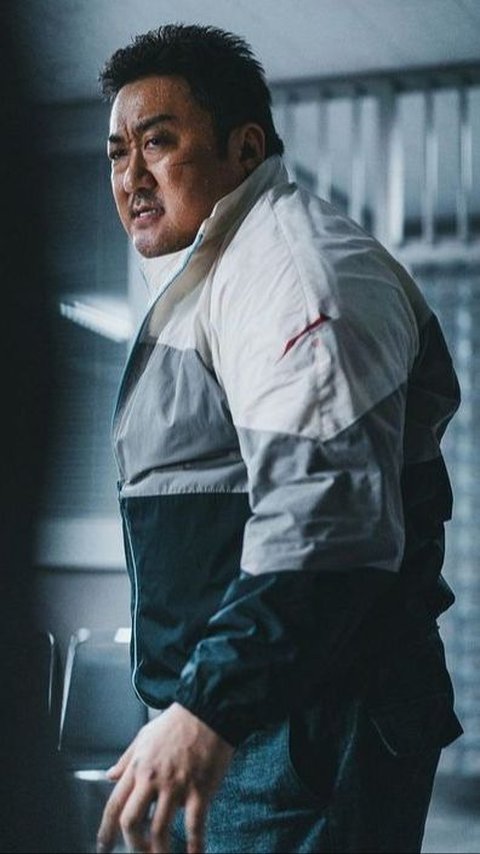
Ma Dong Seok, also known as Don Lee, is a prolific actor known for his captivating performances, particularly in action films.
Read More
Finding your best soulmate as a Scorpio may need patience and openness, but these five zodiac signs could be your perfect match.
Read More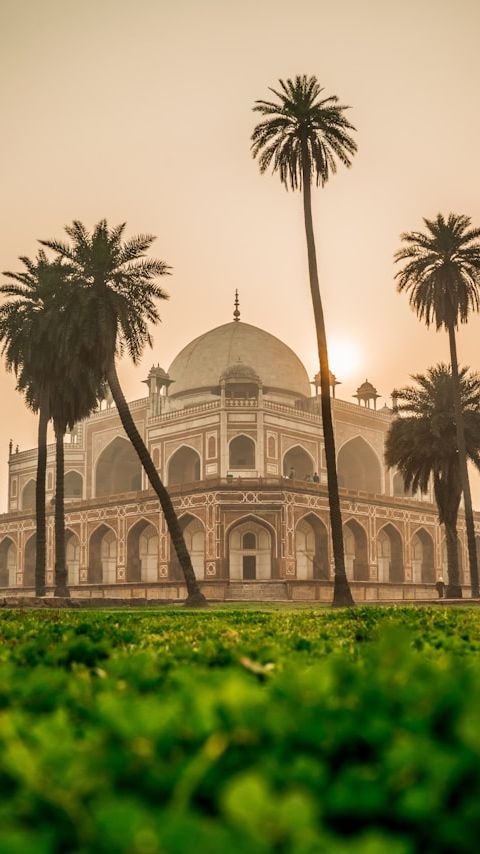
Here are the best places to visit in August in India for those who want to avoid the crowd during the peak season.
Read More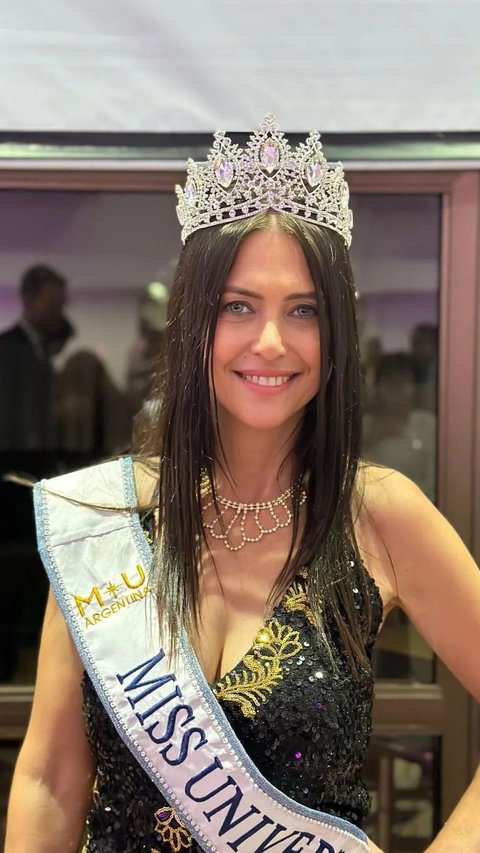
After winning Miss Buenos Aires, she went viral on Latino social media.
Read More
First released in 2006, the PlayStation 3 has several video game titles that have stunning graphics even today.
Read More
Sometimes, simple words can have the most profound meaning.
Read More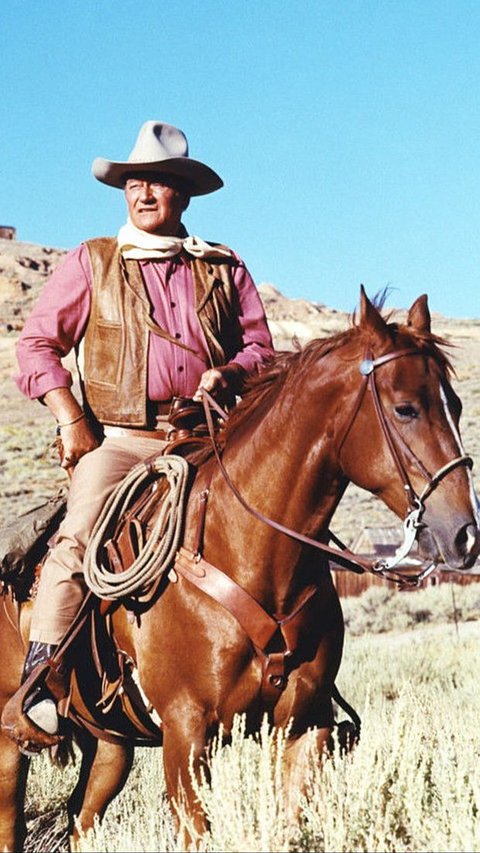
John Wayne movies have stood the test of time and continue to delight audiences of all ages.
Read More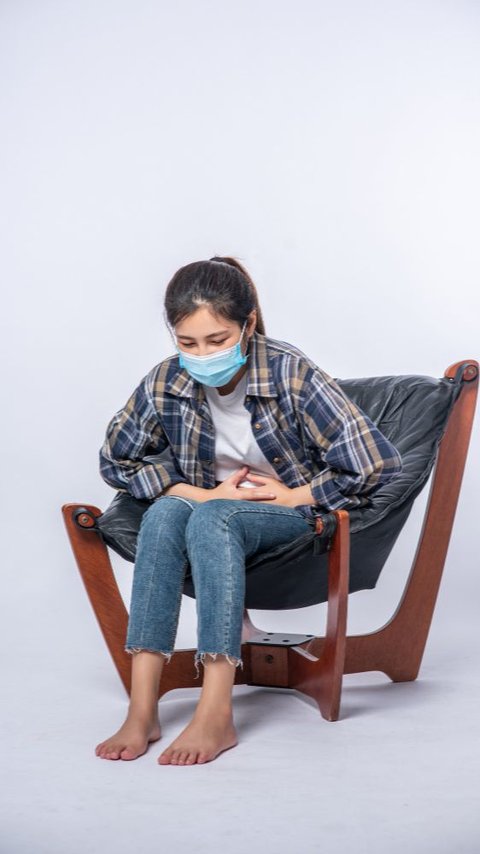
While you are suffering from constipation, you may wonder what helps with constipation. Here are 10 tips and 9 foods to eat that may relieve constipation.
Read More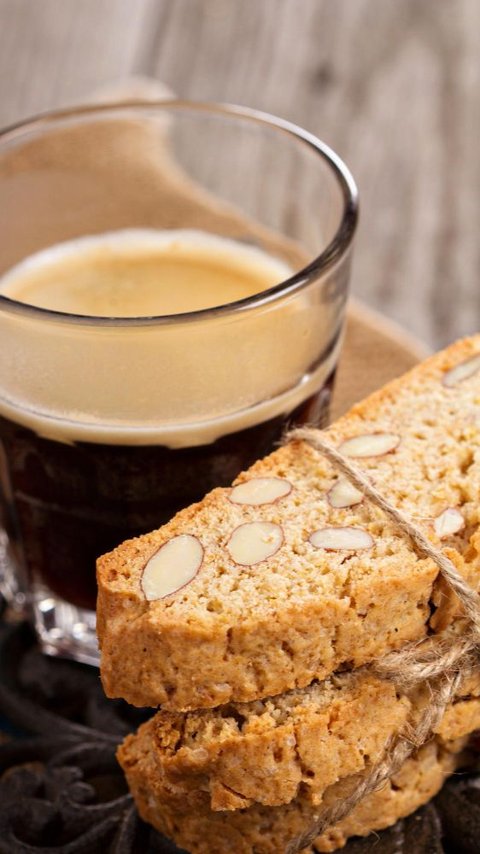
Our basic biscotti recipe will help you to make this classic Italian delight right on your own kitchen.
Read More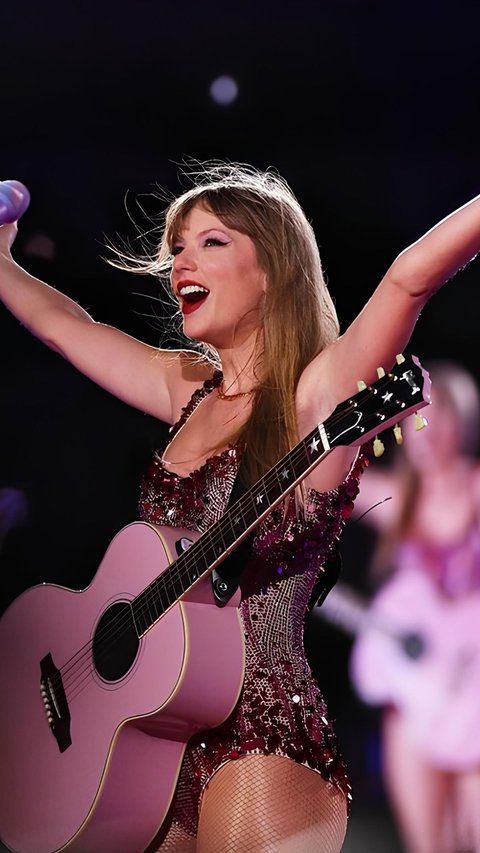
Taylor Swift's beauty tips and skincare routine underline the importance of consistency, hydration, and nutrition.
Read More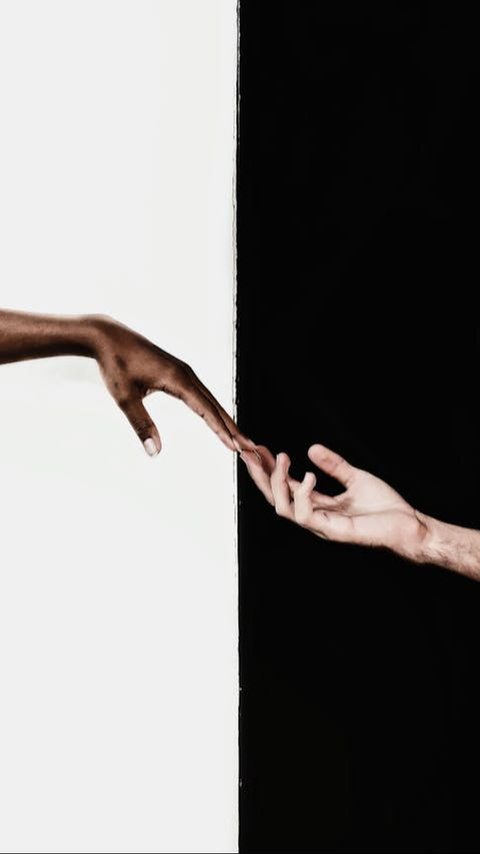
These quotes about helping others will inspire you to give a hand to other who need.
Read More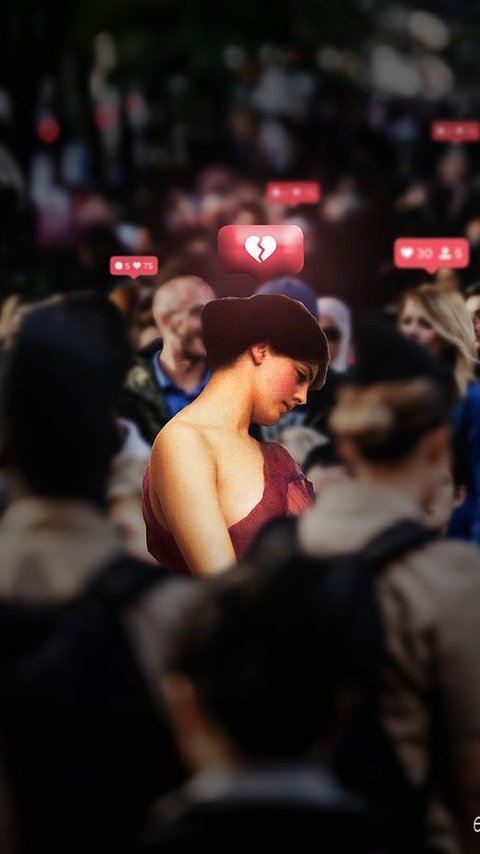
Feeling alone quotes serve as reminders that we're never truly alone in our experiences.
Read More
The online bullying was started in December last year.
Read More
This quote gently reminds us that beauty is not just a reflection in the mirror.
Read More
From these meaningful quotes about smiling, we can learn just how powerful a simple gesture like smiling to ourlseves and our surrounding.
Read More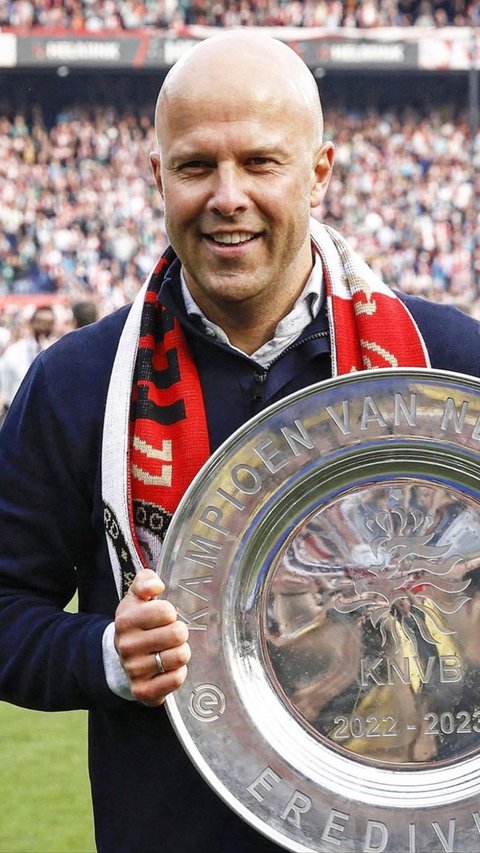
Liverpool FC has made an approach for the 45-year-old Dutch manager.
Read More